Home Blog Page 33

Freeware PSD Viewer Softwares for Opening Photoshop Files

Photoshop documents, known as PSD files are opened and edited in Photoshop; but there are other PSD viewer software that can open and edit PSD files. And the good thing is that most of these PSD viewers are 100% free.

Photoshop is undoubtedly the backbone software for all graphic designers. But we don’t always have a subscription for it. It costs a lot!
Photoshop costs even more than operating systems, such Microsoft Windows or Apple Macintosh. So we often need a PSD viewer so we can easily view, print or edit our PSD files without requiring the mother software.

We can do that. There are PSD viewers that perform this job efficiently and today we have listed them up.

There are three types of software that can work as a PSD viewer. First is an application that is made solely for previewing purpose. These applications run fast, but they don’t perform any edits.

Second type is universal viewers. These applications are pretty useful because they don’t only let us preview PSD files but they let us preview all types of files. So they are productivity software.

Third type of software is Photoshop alternatives. These software eliminate the need of Photoshop.

We have listed all three types of PSD viewer software in this list. We hope you like the effort.

PSD Viewer Software

Free PSD Viewer

PSD viewer is fast, small and compact freeware image viewer supported by all versions of Windows. With this viewer you can easily convert and save opened image in other file formats as JPEG, Bitmap, GIF, PNG and other extensions.
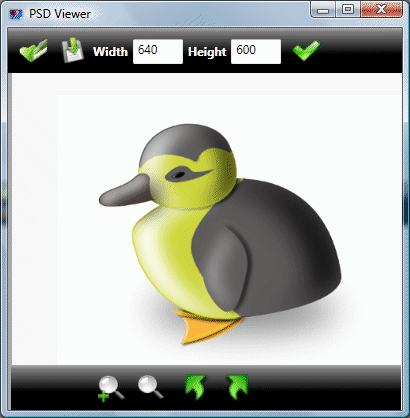
PSD Viewer

PSD Viewer and Recovery Tool

The unique file analysis engine of the program has no problems opening extra large PSD files damaged in all kinds of data corruption incidents ranging from power shortages and hardware failures to software bugs and virus attacks.

Apart from being a fast PSD viewer for corrupted Photoshop files, the program is also an efficient and reliable PSD recovery tool, which extracts more information than most of its closest competitors do and does not modify the source file in any way.
PSD Viewer Tool

PSD Viewer Utility for Windows 8

PSD Viewer is small, compact, user-friendly viewer that that lets you view Adobe Photoshop (.psd) files, resize and convert them to other image formats (.bmp, .jpg, .gif, .png, .tiff).
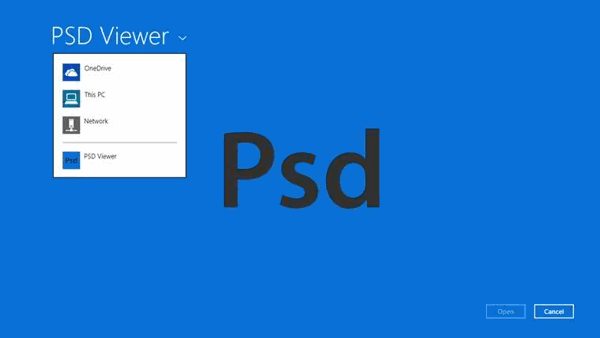
Windows 8 Utility

Picture Viewers that support PSD Files

Universal Viewer

Universal Viewer is an advanced file viewer for wide range of formats. It can open images (including PSD files), multimedia files, Microsoft Office documents, PDF files and many other types of files. This is also a good SVG viewer.
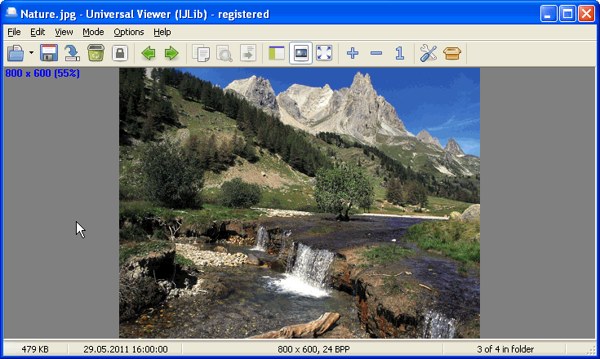
Universal Viewer

Fast Stone Image Viewer

FastStone Image Viewer is a fast, stable, user-friendly image browser, converter and editor. It has a nice array of features that include image viewing, management, comparison, red-eye removal, emailing, resizing, cropping, retouching and color adjustments.
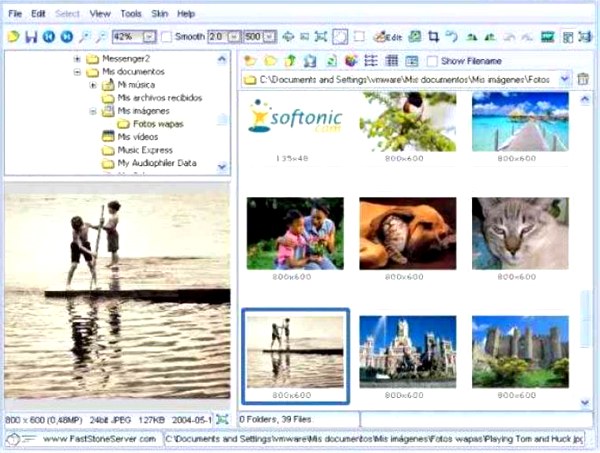
FastStone Image Viewer

ACDSee Free

ACDSee Free is a simple image viewer with some extra basic functionality. This is a stripped version of the famous ACDSee Pro software.
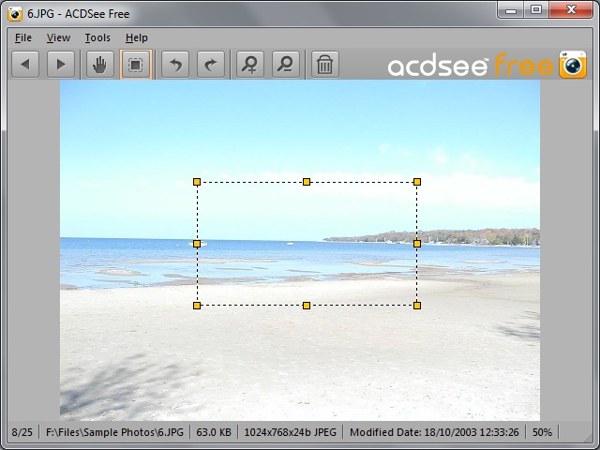
ACDsee Free

Photoshop Alternatives that Work as PSD Viewers

GIMP

If there’s anything that can challenge Adobe Photoshop from the freeware category, it is GIMP (GNU Image Manipulation Program). This is a powered up program which can work as a full-featured image editor and processor, and you can also work with vector graphics as you do in Adobe Photoshop.
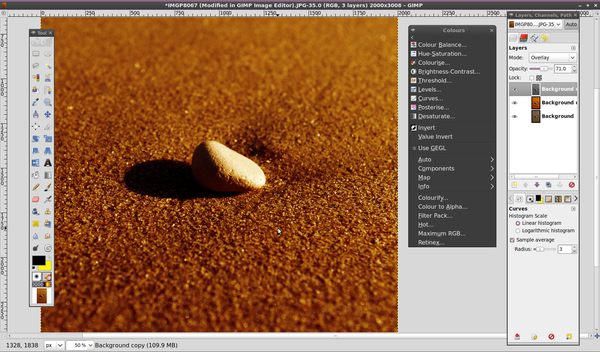
Freeware Photo Editing Program

GIMPshop

Since GIMP has a different interface compared to Adobe Photoshop the creators of GIMP have now launched GIMPshop. This is still the same free GIMP, but its interface is as much close to Adobe Photoshop as it could be. You can see the screenshots of both the programs below.
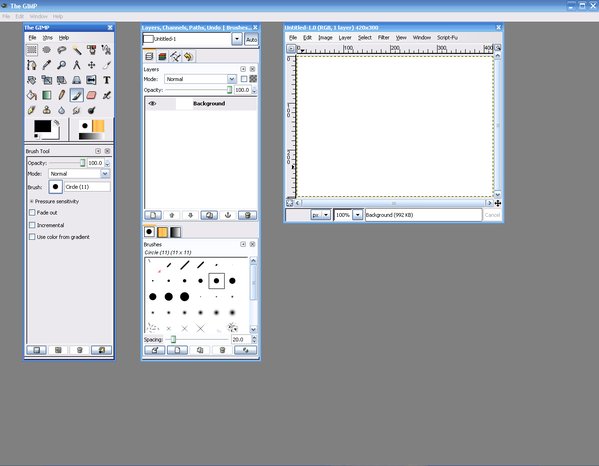
Free Photoshop Alternative

FireAlpaca

We made it possible to provide the completely FREE download, in order for our products to be experienced by more users from all over the world.

This is a relatively easy software compared to Gimp. But then it lacks some of the high-end features Gimp has.

If you need to perform only the basic image editing functions, this should be an ideal tool for you.
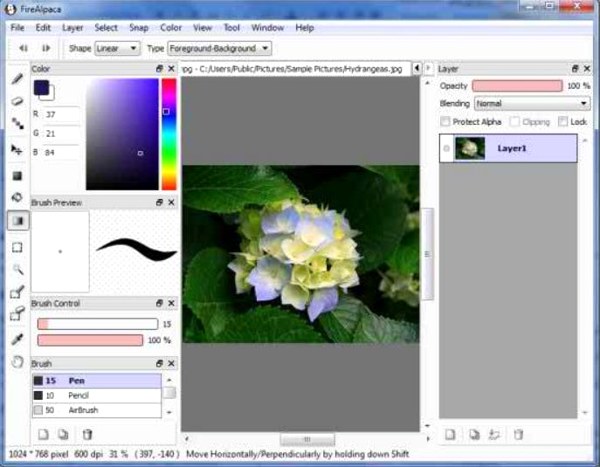
FireAlpaca

Paint.Net

Paint.Net is quite an intuitive program, sadly it only runs on Windows at the moment. This is a very very popular tool for photo editing. It can import PSD files and edit them. Paint.Net is rather user-friendly and very easy to learn compared to any other image editor in this list. And its interface is very similar to Photoshop.
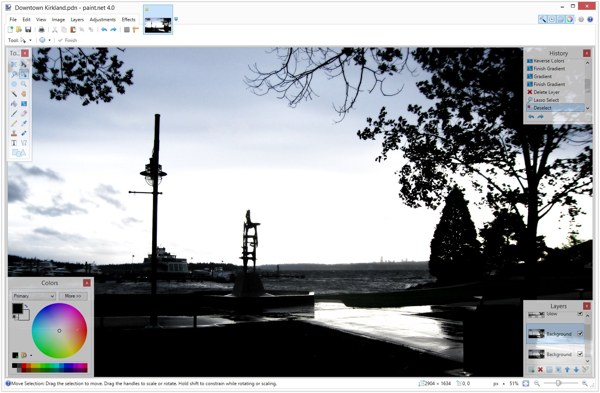
Paint.Net

That’s all folks. Thanks for everything, see you tomorrow.

What Clients Say and What They Mean—a Guide for Web Designers

Fellow writer Arfa recently wrote an article, a guide for prospect clients to communicate with Web Designers and Web Developers. I’m doing the opposite; I’m writing a guide for Web Designers for communicating with their clients.

On many occasions, clients are unable to define their needs and the design they have in mind. This is not their fault actually, they don’t know our geeky terminology and have no idea about our working patterns. So if we are able to understand their mind in their own words, this would make our and their lives a lot easier, not to mention the commercial success.

We Want a Good Design

Ok Sign

Many times your client will tell you that they need a good design. What is a good design? This is the trickiest question out there. Everyone has their own criteria for a “good design”.

We just need to find out that criteria are for this client. Doing that is in fact not that hard. Here are some simple steps through which you can easily find out what will seem “good” to them.

Questions They Have in Mind

Question Mark

There are a few basic questions which every client has in mind before he/she comes to you, and since some questions can be considered a little rude, the client doesn’t ask it directly; some stupid questions take place instead and the designer has a hard time understanding that why this question is being asked.

Despite the fact that you are a freelancer or a small business company, you should answer these questions even before the client asks it is almost certain that you will nail this client. Here are a few of those questions:

Are You Eligible for Designing My Site?

Being polite, a client will never ask this question so bluntly, but believe me, this is the main question he has in mind. If you have designed sites of any similar kind of business, name it. But the best way to show them that you can do the job is to learn about their business.

Inquire how they work, what are the fundamentals of that business. Basically, you just want to get a sense that how their business works. If you already have knowledge of that particular business type, tell them about it. Nobody can do the job better than the one who knows how their business functions.

Why Do You Cost So….

Whether you cost low or high, the client will be thinking that why are you so costly or cheap, whatever kind of price you have quoted. If you cost more, you need to tell them the elements that make you better among the rest and cost more. And if you cost less, why is that… and why the quality will not be compromised.

Are You Dependable (Freelancers)

This is the basic problem with freelancers, they are not always very punctual, and the clients know that. So you need to assure them you do always meet the deadlines and the schedule of work. Tell them how much value you give to being punctual.

Finding Their Priorities

Discovering

Some people like a clean simple kind of design for their logo, website or whatever, while some people like their design very catchy, flashy and colorful.

To find out what they prefer, you should ask them of the relevant design they like. If they want a website, ask them what other website designs do they find pleasant. Once you get them rolling, they will keep telling that they fell in love with a menu (navigation bar) from one site, an intro from another and a layout from a different one.  Pretty soon, you will have a good idea about their likes and dislikes.

Discovering Their Needs

You should always remember one thing; you are the professional, not your client. So they might have an idea, but it is your job and your duty to modify their idea in such a way that it fulfills their needs.

For example, if your client is a doctor and he wants a website for his clinic, your website design should be simple and clean. If the client thinks otherwise, you should explain your point of view.

When a client comes to you, he likes your opinion; or better said, your honest opinion. Being honest very important, but staying diplomatic has to stay your antecedence nevertheless. The client should not feel that you are “rejecting” their idea.

To make it short, I think the best way find needs of a person is to visit the websites of his competitors. Observe the prominent points on their websites, and above all, how they have designed their websites. You will be able to design the ideal website for your client after these tours to the opponent’s websites.

Staying in Touch

I must confess, this is a point I’m stealing from Arfa’s article. As you start the design, keep sending the blue prints and the design as it is made. This not only keeps the client updated and satisfied, but if he wants to make a change somewhere, he would inform you and so you won’t have edit the design after you made the whole design.

Conclusion

Let’s go through the steps once again.

1.       Meet a client

2.       Find out what kind of designs does he like.

3.       Visit the opponent websites

4.       Observe Prominent Points

5.       Give your review on their design.

6.       While designing, keep your client updated with the design process.

30+ Helpful Adobe Muse Tutorials

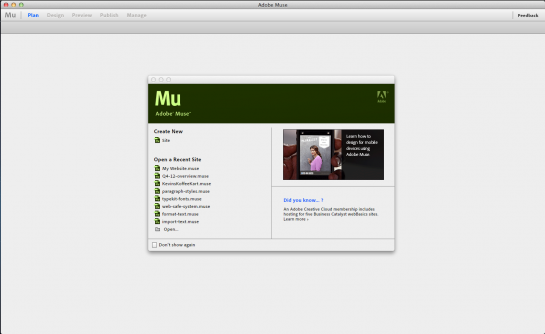
Today we feature all of the Adobe Muse tutorials that are on the internet right now. That includes video tutorials and other screenshot based tutorials.
Adobe Muse the latest from the powerhouse software developers. It is a web design application intended for people who do not know how to code. It is a completely code-less way to create websites.
The latest version, Adobe Muse CC costs nearly $15 per month.

Muse looks a little like good old Macromedia Fireworks, but of course, it is a lot different.

Adobe Muse Tutorial Collection

I only wanted to add quality tutorials that are actually worth the time. I’m sharing the ones I found. They are not much but don’t worry. There are loads of more Adobe Muse tutorials in the next section of this post.

How to Create a Website With No Code

This tutorial is a go-through of the process of creating a website.

Adobe Muse Tutorial for Building a Website

Adobe Muse Fundamentals

Senior web developer and teacher Mark DuBois teaches the fundamentals of Adobe Muse.

Site Settings Box on Adobe Muse

Top 5 Adobe Muse Design Tips and Tricks

No one wants to stay a beginner for the rest of his life. These Adobe Muse tips and tricks convert you from a newbie to a pro.

Secrets of Adobe Muse

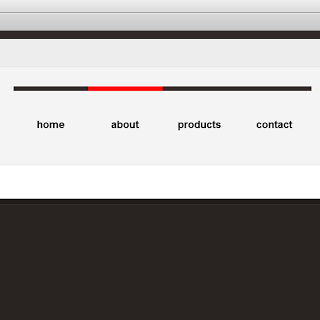
How to make a menu in Adobe Muse?

Tutorial to designing a dynamic but simple navigation bar in Adobe Muse.

Designing a Menu in Adobe Muse

ADOBE MUSE: Web Design Made Simple

This article goes through all the important features of Adobe Muse.

Adobe Muse Web Design

Adobe Muse Video Tutorial Collection

Adobe Muse is a new software so there aren’t many tutorials in the market yet. But I’ve managed to gather a few from Adobe.com as well as rest of the internet.

How To Get Started with Adobe Muse – 10 Things Beginners Want to Know

A 40 minutes long video from Adobe.com’s own Terry White.
Terry guides to using some of the basic functions and features of Adobe Muse, as well as describing the use and target market of Adobe Muse.

How to Use Photoshop Files in your Muse Website

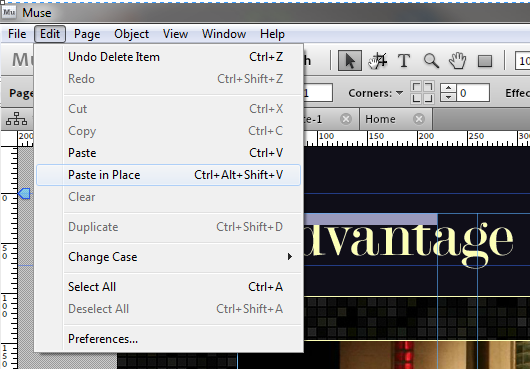
In this Adobe Muse tutorial you can learn how to use PSD files with Muse.

Placing a layered PSD file into Muse

This tutorial of Adobe Muse guides how to import a Photoshop file into Muse while preserving layers.

Adobe Muse and Google AdSense – How to monetize your Muse site

Money matters! Learn how you can add ads to your websites in Muse.

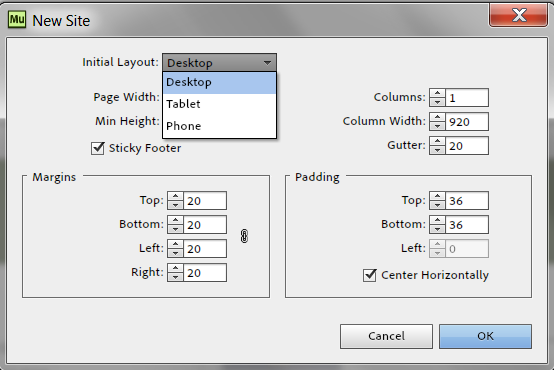
Adobe Muse: Designing for Smartphones and Tablets

These days we all need to make websites that render properly on mobile devices. Thankfully, Adobe Muse can create those websites.

5 Tips for Adobe Muse Users

Terry White describes the most important tips for beginning designers.

Adobe Muse CC Parallax Tutorial

Create the majestic parallax scrolling effect right in Muse.

Understanding Master Pages

Master pages are a life saver when you are creating websites that contain multiple pages (as almost all websites do).

Setting up Master Pages

You understood what master pages are in the previous video. This is the Adobe Muse tutorial for learning how to create master pages.

Building a Basic Website

This half an hour video tutorial guides for building  a basic level website using Adobe Muse.

Building a Simple Website - Adobe Muse Tutorial

Taking Adobe Muse Further

Let’s now dive into some of the more advanced features of Adobe Muse.

Learning about Page Properties

Page Properties is the place where you set encoding and all the essential things you should set up before actually establishing a website.

Creating a Lightbox Slideshow in Muse

This tutorial guides how you can create a Facebook like slideshow in Adobe Muse.

Adding Effects in Adobe Muse

Muse comes with a library of ready-made effects. Learn how you can simply add those effects into your websites.

Adobe Muse eCommerce – Online Store Setup

Set up your own eCommerce online shop with this Adobe Muse tutorial.

What’s New in Adobe Muse

Adobe released the latest update of Muse on August 20th, 2013. Check out what are the latest features added.

I hope you liked our effort. We’ll be publishing more Adobe Muse related articles this week so stay tuned. See you 🙂

Ideas for Taking Better Selfies

Human beings have always been looking for innovative and effective ways for their common communications. Social media has proved to be the best, quickest and most successful of all the means. It would be logical to claim that social media addiction has surpassed that of alcohol. The most charming and fascinating feature in this medium is to share photos, and this has led to a roaring boom in selfies.

Since we are using social media day in day out on laptops, smart phones and tabs, there cannot be available a person all the time to take pictures of us. Therefore, all of us have adapted to selfies as this is the fastest and easiest way to make snaps anywhere anytime and share them with friends and followers.

The main logic behind sharing selfies on social media is to get more likes and attract more followers, but this cannot be possible with ordinary and simple captures. In order to go viral, you need to put some exclusive, unique and different selfies. Here, we discuss a few good ideas that can help you taking better selfies next time.

Make Funny Looks

The social media sites are so heavily stuffed up with content that people no more pay attention to pictures with serious and decent faces, rather they hit funny ones. So, while you are going to take selfies, try to present funny looks. You can do it with lips, eyes, tongue and hair. The more funny your face looks, the greater likes it will get. Apart from generating hits for you, a funny selfies will bring smiles to others’ faces and this is what we call goodness.

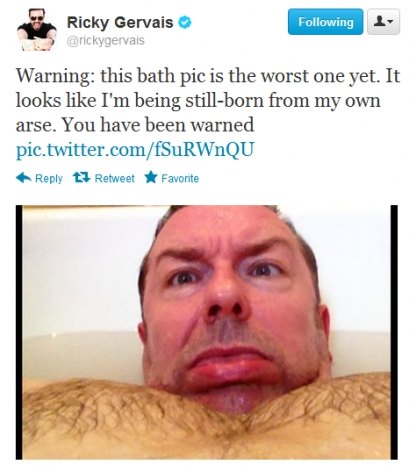
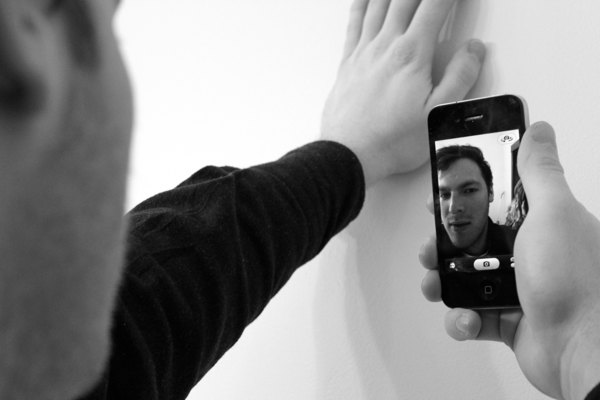
And if you really wanna go crazy, you can follow British comedian Ricky Gervais who has a habit of taking ‘worst’ selfies that he can. He purposely makes it look amazingly hideous. Here’s a famous selfie of him.

Ricky Gervais Selfie

Arrange Adequate Lights for Selfies

Light plays a key role in making a picture good or bad. Same is the case with selfies. When you are up to take one, make sure that there is available proper light around you. If you are outside, you do not need to care for this as natural light is enough. But when you indoor, you must position yourself in front of a lamp or bulb. With lights behind you or over your head, selfies will always be shady and dark. Facing a light source is always a good position.

Arrange Lights for Selfies

Choose A Good Background

A good background can lift up the value of a selfies and an ugly one can ruin all of your effort. When we see a picture, we perceive it in the context of its background. A selfies with background of landscape will have a different effective than the one that is taken in a rush market. Thus, always pick backgrounds for your selfies carefully. Try to place yourself with back towards some green fields, beautiful planets, waterfalls, famous posters, landmarks and well-painted walls etc. The more catchy background your selfies have, the deeper they dig in the eyes of viewers.

Usain Bolt Selfie in Brazil

Usain Bolt taking his selfie under “Christ the Redeemer” statue in Rio de Jeneiro, Brazil.

Reserve Selfies To Special Occasions

Quantity no more matters in digital world, because people have become more choosy and finicky due to the availability of abundant content over internet. Instead of 10 ordinary selfies, one special selfies is better and it will get more likes. Do not be messy while taking and sharing selfies. Some social media savvies seem to be putting an image every 20 mints. This irks viewers and, thus, they do not bother much.

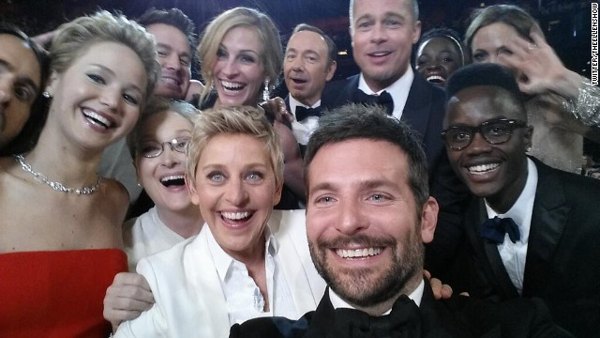
So, try to reserve selfies to special occasions only i.e., you are out for a dinner with family, you are watching a red carpet show, you are meeting a celeb, you are in your college party or you are doing something different and interesting.

Ellen took this selfie during Academy Awards.

Ellen took this selfie during Academy Awards.

Make Selfies Thematic

While trotting through social media, a thematic selfie on someone’s timeline looks more striking and appealing than a simple one.  So, always try to incorporate some interesting theme in the snap you capture. You can play with dress colors, hair styles, tattoos, body gestures and movements in order to depict a specific theme. For example, with bright multicolored dress, sunglasses and beech, you can portray the theme of the advent of summer. Remember, a selfie that is just showing a face is far worse than the one that is representing a whole theme.

Make a theme for a selfie

Photo by Lizz Fraser.

Try Odd Things

There is no second opinion in the fact that the focal point of all selfies are you and you only, but the things that you can change are places, poses, postures, gestures, angles and themes. Do not go straight while taking a selfie, rather try odd things. Think out of the box, go wild and do strange things. Use different angles like top, bottom, right, front, left, back etc. Take selfies during different activities of your routine life, then sit down and select a few good ones and share them with others. They will surely garner amazing responses.

Forever Alone Selfie

Conclusion: Selfies Are Fun

Whatever the rules and methods of making selfies you use, just keep in mind that selfies are just meant for sharing some good and light moments with others. They are just fun, so do not take them so serious. Stay casual, stay rough and go on making selfies constantly. Other than being a good stuff for social media forums, selfies are the archives of your sweet and sour memories. You can save them on your hard drives or print them to make albums. Just keep the flame of this fun burning all the time in your life.

The popularity of selfies can be gauged by the fact that oxford dictionaries declared Selfie as word of the year in 2013. This fame is set to go up higher in the time to come, because more and more people are getting digital with the passage of every single day. That matter of fact is that if we remove the feature of selfies from social media, the entire system will become charmless and boring. Selfies is what that keeps you in-touch with your friends and families. This is what makes you happy and others too.

Links for further reading:

25 Coolest Project Page Designs on GitHub

What comes to mind when I say GitHub designs? Small black text slapped on plain white ground?? That’s not always the case though. Developers can design too you know.
Developers, myself included, usually focus so much on code that forget the importance of design. Since GitHub is primarily a platform for developers, that’s usually the case we see over there. All focus on the code, not much on the project page designing. We keep it simple; black text on white background.
But there are some of us who go beyond that.

A couple of years ago, automatic page generator was introduced on GitHub, and with it a revolution of coders designing their project or demo pages. Many coders thought that designing plays integral role in making a product popular, so they designed awesome project pages for their repositories. Today, I’m sharing a collection of the thirty of my favorites among them.

GitHub Project Page Designs

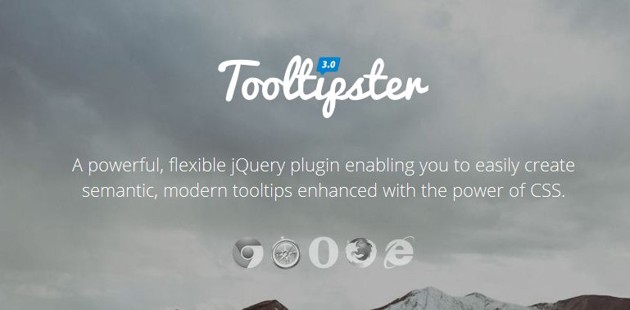
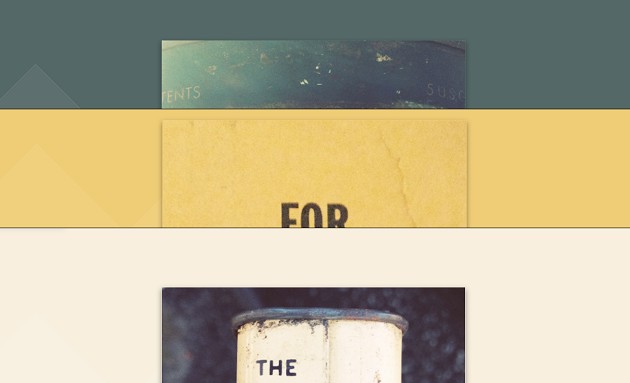
Tooltipster

This is one of the most powerful tooltip tools I have ever seen. Now that’s big statement I have given so I guess you should check out the demos at least.

Tooltipster

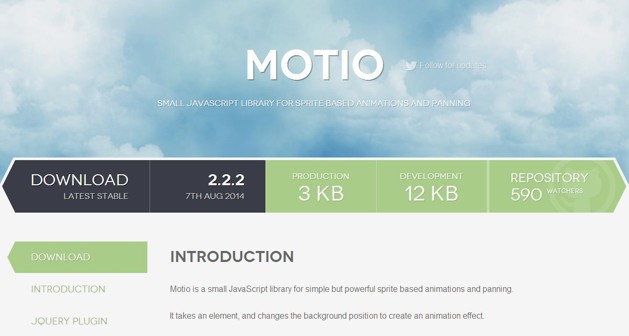
Motio

This is a pretty cool awesome JS motion library with no dependencies.

Motio

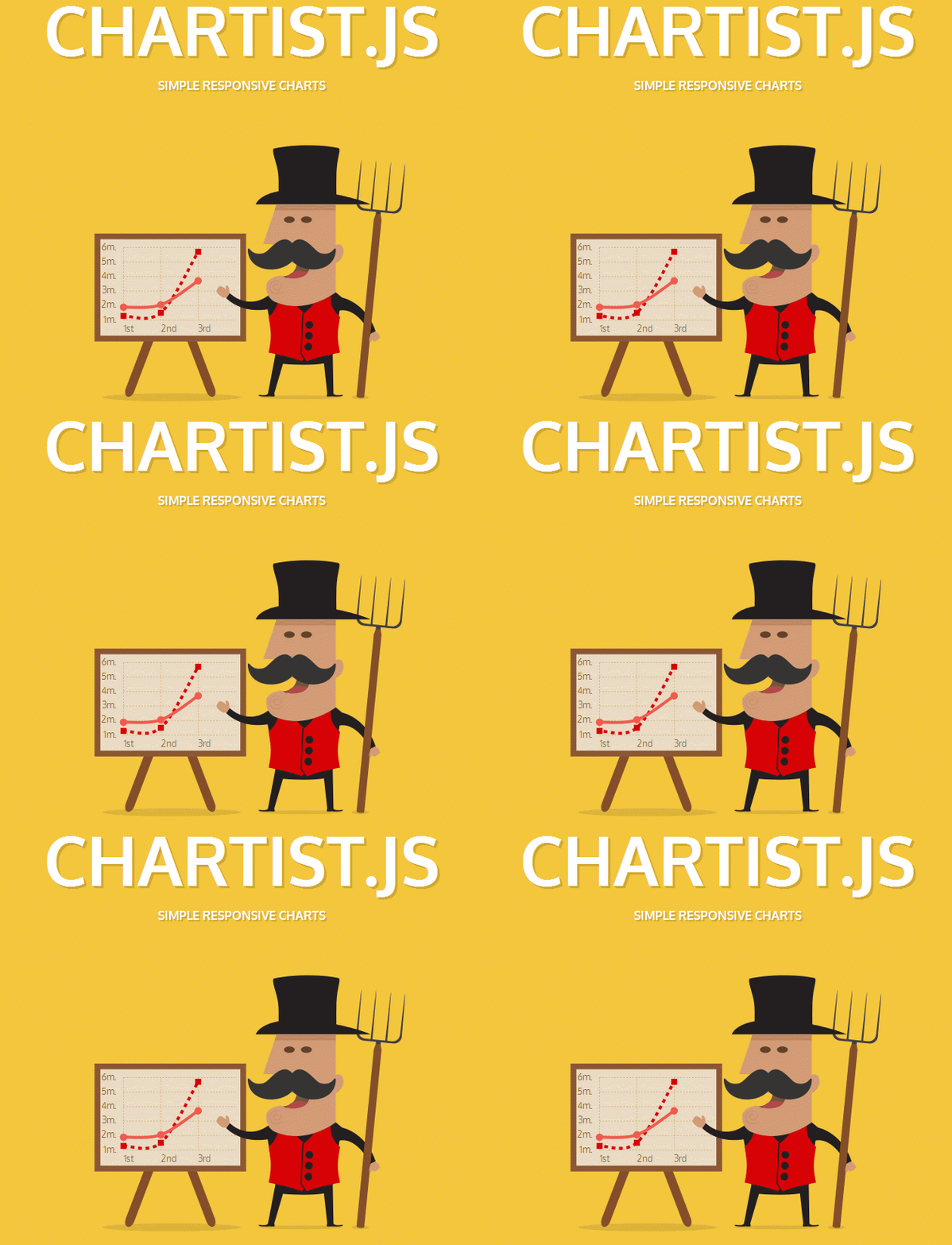
Chartist.js

This is a pretty cool jQuery plugin. It weighs only 10 KBs and no dependencies.

Chartist

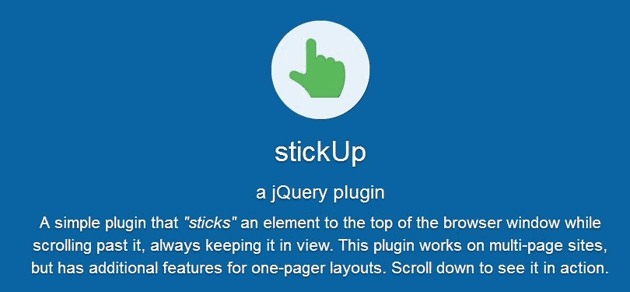
sktickUp.js

This is a fairly simple, but useful plugin. What it does is it sticks an element (such as a navigation bar) to a fixed position on the page so that this element stays visible even if the user has scrolled down.

stickUp

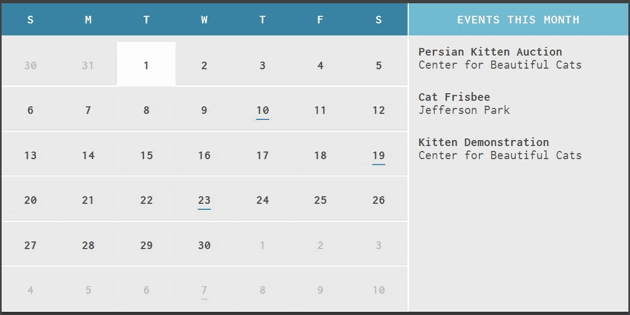
CLNDR.js

It’s a jQuery calendar, what else.

CLNDR

Scrollorama

Do you ever get the urge to make a design really wowing? Do you crave adding lots of animations and transitions and make the design absolutely stunning? If you do, then this is the plugin you need.

Scrollorama

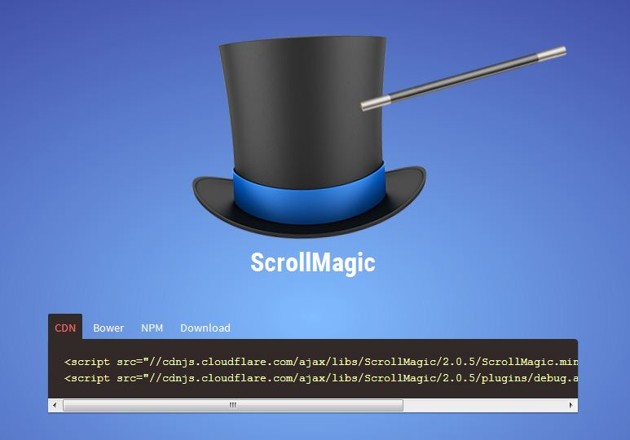
Scroll Magic

This is a parallax like effect with jQuery.

Scroll Magic

Adaptive Backgrounds

This plugin changes the BG color according to the color in the images and other content on the foreground. This is a Vivaldi like effect.

Adaptive Backgrounds

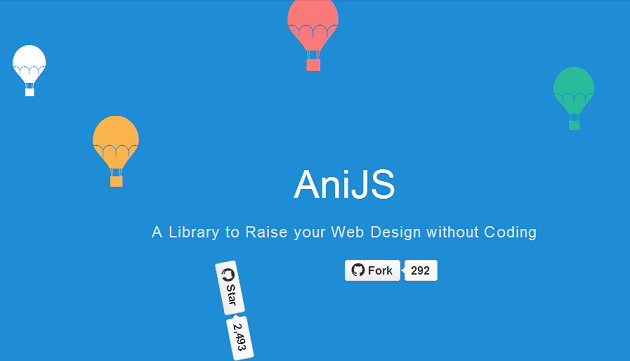
Ani JS

If you want to add modern animations in your design, this is the plugin you need.

AniJS

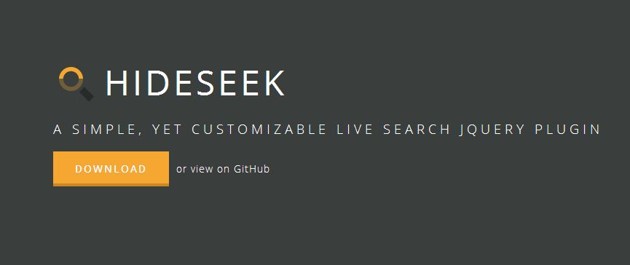
Hide Seek

This is a the most powerful jQuery search plugin. It realtime search tool for your web apps.

Hide Seek

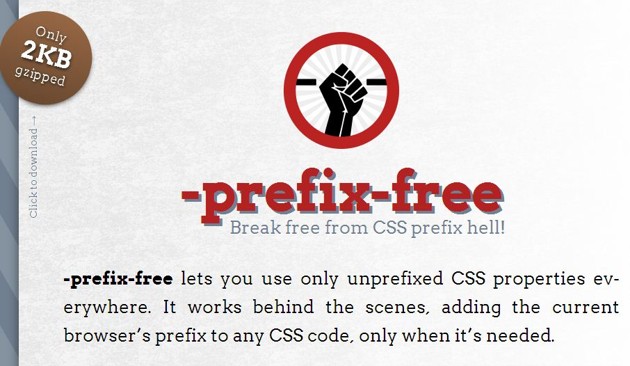
-prefix-free

Only 2 Kbs in size. It lets you use only unprefixed CSS properties throughout the website.

-prefix-free

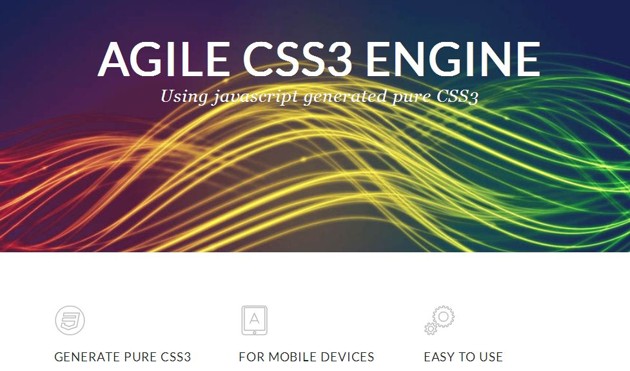
Agile

This is a CSS3 engine. It generates pure CSS3 code.

Agile

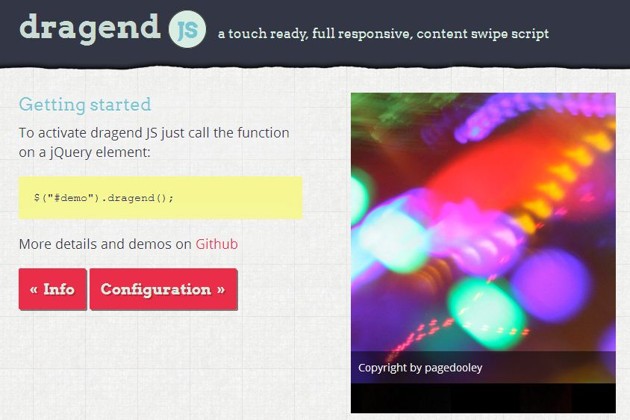
Dragend JS

This is one of the best JS plugins I have seen for content swipe.

Dragend

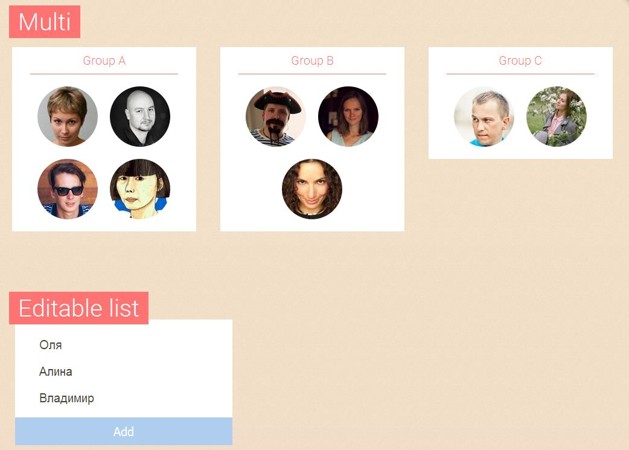
Sortable

This is a no-jQuery plugin that allows you to create drag-and-drop enabled lists and grids.

Sortable

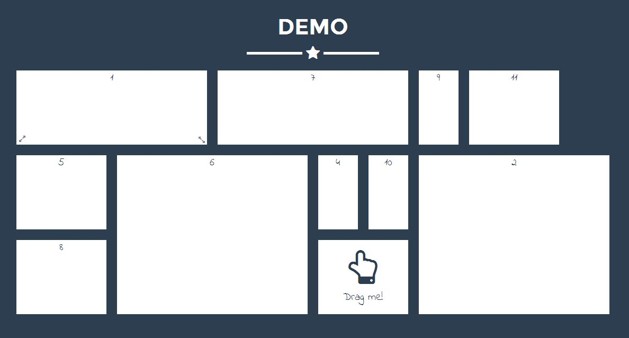
Grid Stack

This plugin is quite similar to the one above, but this one is a jQuery plugin and contains some advanced features, such as resizing of the grid items.

Grid Stack

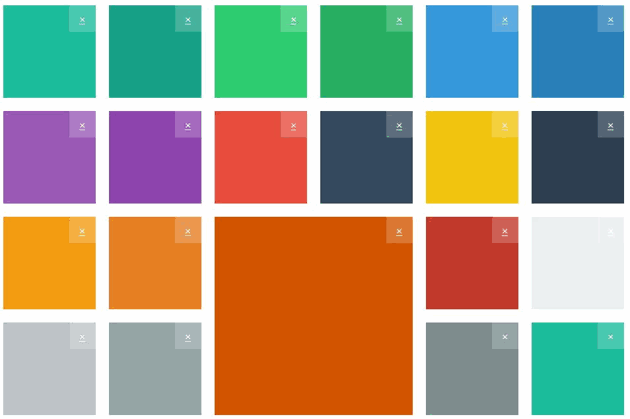
jQuery Gridly

If the Grid Stack (above) is too advanced or heavy for you, then here’s a lightweight alternative. It doesn’t offer as much customization but then again, slimness comes at a price.

Gridly

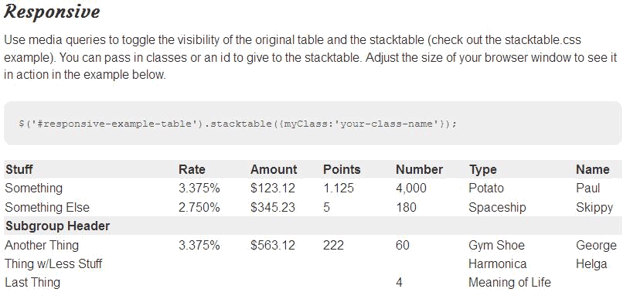
stackTable.js

This is a nifty tool that helps us to make data-driven tables for small screens.

StackTable

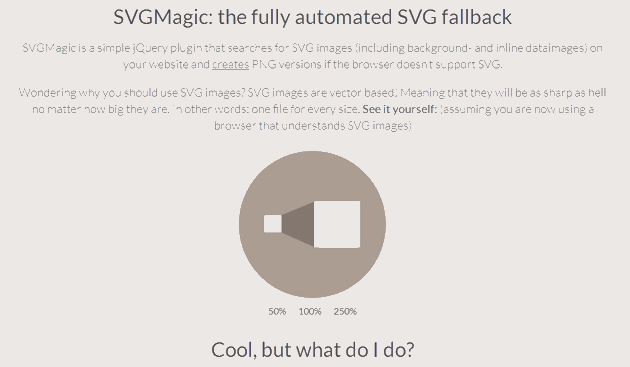
SVG Magic

If you are a designer who loves to work with SVG graphics then this is a must-have pluign for you.

SVG Magic

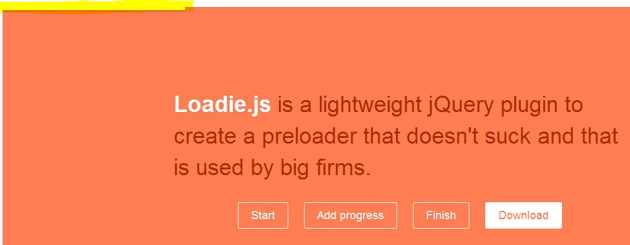
Loadie.js

Okay, this is a pretty effect and many plugins offer this loading effect, but I added it anyway for the readers who still don’t have this plugin because this something you really need these days.

Loadie

Labelauty

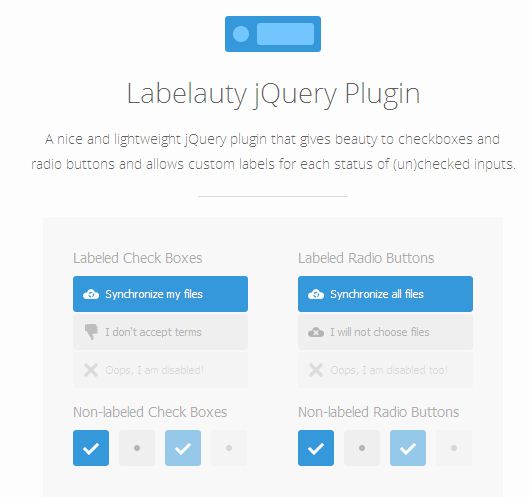
Just Loadie, this is small plugin but it creates a huge impact. It subtly stylizes radio buttons and check boxes and give your website a refined look.

Labelauty

Toolbar.js

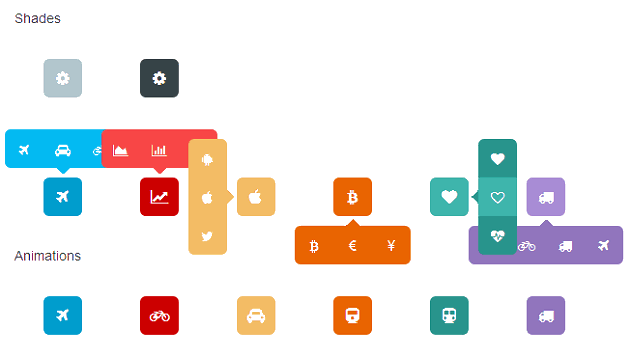
This plugin creates toolbars. Simple as that.

Toolbar

That’s it for tonight guys. We have a great post lined up for tomorrow so make sure you don’t miss out. See you.

100+ Free Mockups: Apple Watch and Other Latest Smartwatches

Smartwatch is not a gadget from the future, it belongs to present time. That is the reason there are so many clients requiring designers to create apps for smartwatches and that’s the reason why we have been focusing on designing for smartwatches for few weeks.

Now when we have covered techniques of UI designing for smartwatches, it is time to find some resources to present those designs. After all, presentation is half the design.

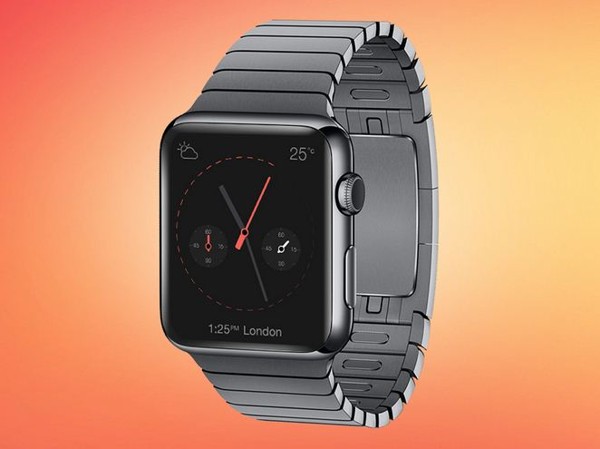
So today I have selected some of the best looking Apple Watch (why not iWatch?) mockups, and some other mockups belonging to the other smartwatches in the market.

Most of the mockups featured here are sets of mockups. When I roughly counted they were totaling over 180 mockups. I could have said 200+ mockups but just to be statistically correct, I’ve stated only 100+. You can be sure that the total collection is actually bigger than you would ever need.

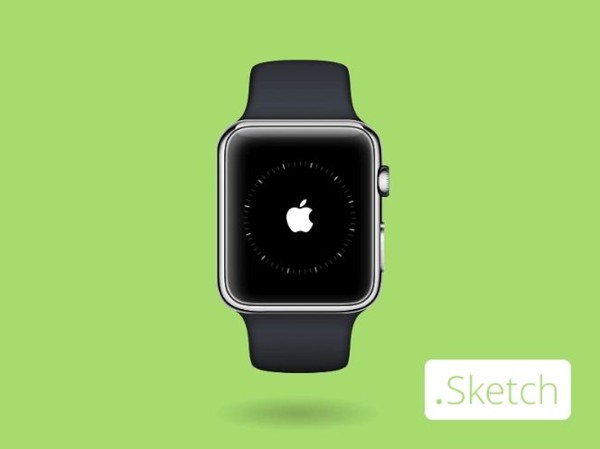
Around 80% of these mockups open in Photoshop but not all. There are some for Adobe Illustrator and some for Sketch as well. Please check the descriptions to check which software do they open in. If nothing is mentioned, they are PSD files.

Free Apple Watch Mockup Collection

The following are mockups of Apple Watch only. In the next section we’ll check out mockups for other smartwatches as well.

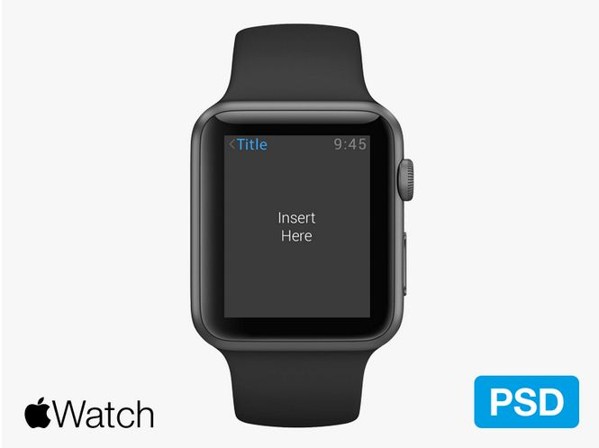
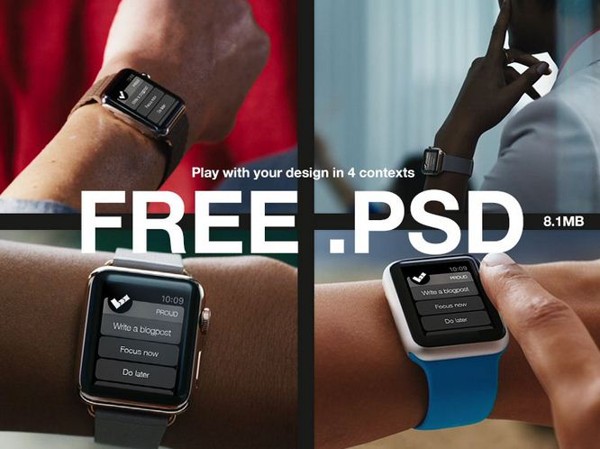
4 Free PSD Apple Watch Mockups

These are pretty straightforward but highly useful mockups.

Apple Watch PSD Mockup

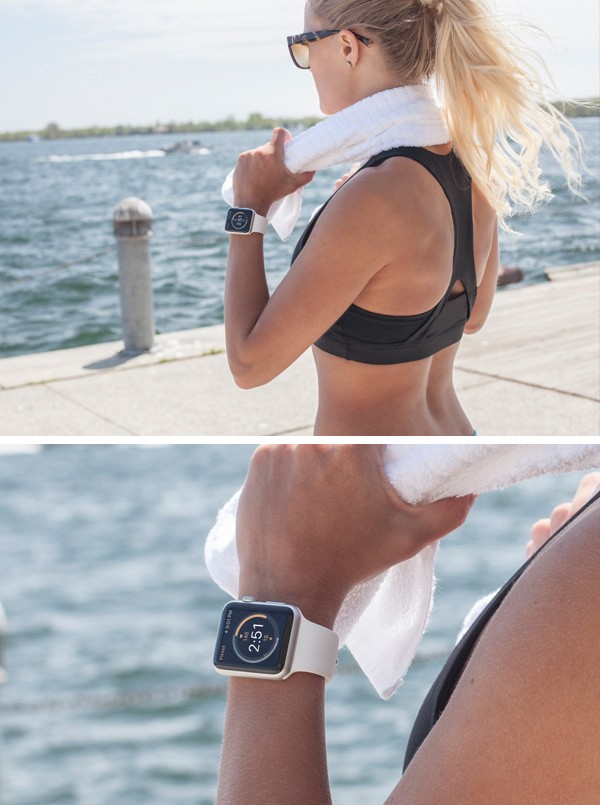
Wearing Apple Watch

I loved this mockup because the photo is taken from such an angle that the viewers whole attention automatically gets funneled towards the design.

Smartwatch on a Mans Wrist

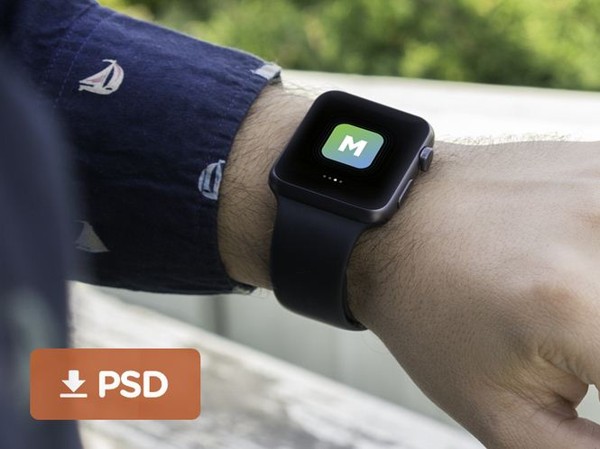
Watch on Wrist

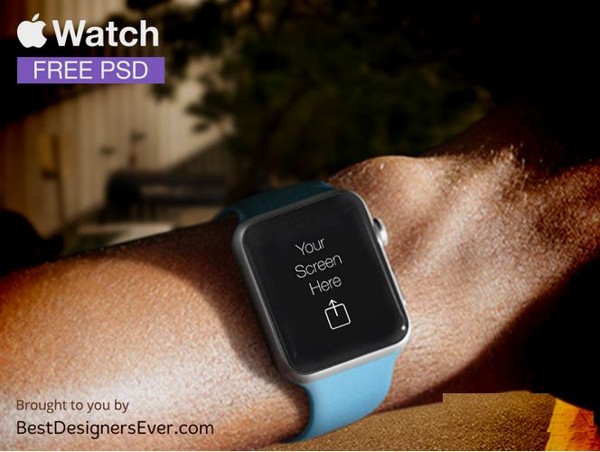
This is a free mockup template with an Apple Watch on a male arm. It is a Photoshop file.

Apple Watch on Wrist Mock up

Neon Styled Mockup

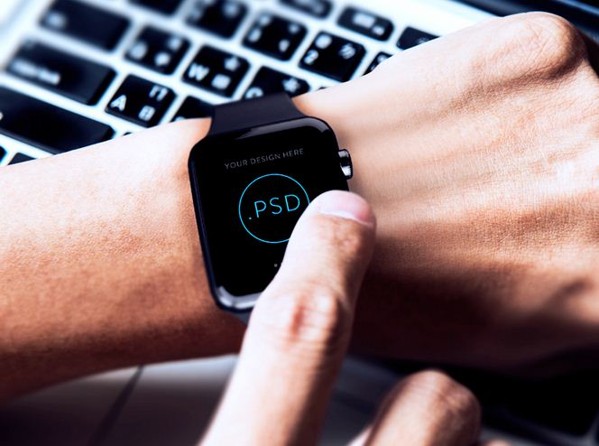
This photorealistic contains a laptop neon styled keyboard in the background which gives it a certain tech look.

Apple Watch Neon

9 Bright Mockups

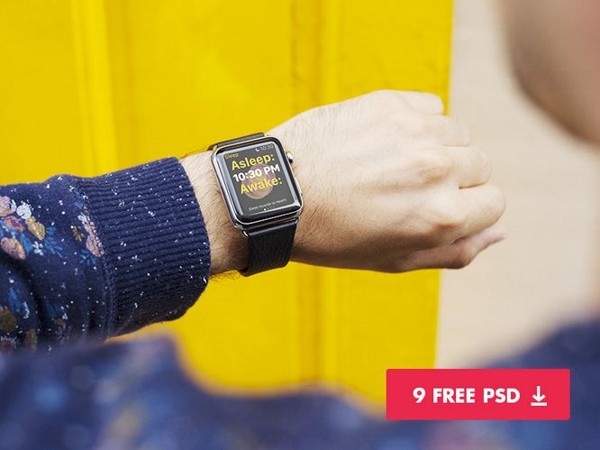
We checked two dark themed mockups, so here’s a really bright one. This is a set of nine mockups.

Bright Mockups

Fitness Mockup

This is a high-resolution Apple Watch mock-up that you can use to display your fitness app or simply as stock photo.

Apple Watch Fitness Mock up

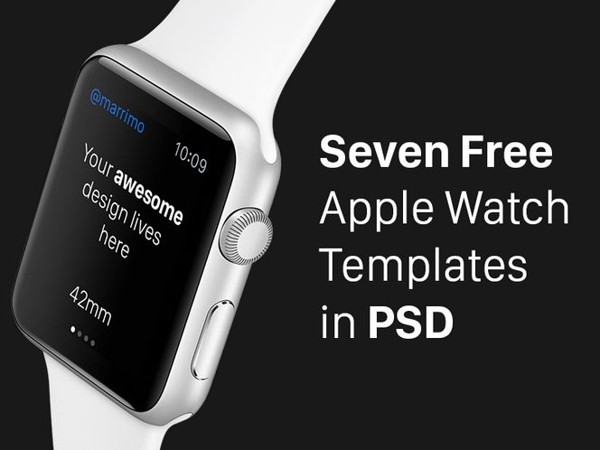
7 Color Variation Mockups

This mockup comes in seven color variations. The angle and shape stays same but the color of the strap changes. You should choose the color that suits your design the most.

Seven Apple Watch Mockups

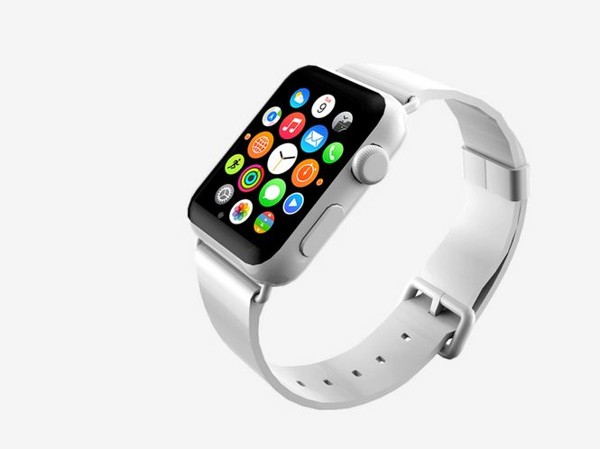
Simple Apple Watch

This is not a set, contains only one mockup but it’s a pretty cool one. It contains one of the most authentic looks of Apple Watch that’s why I thought I must add this one.

Apple Watch Mock up

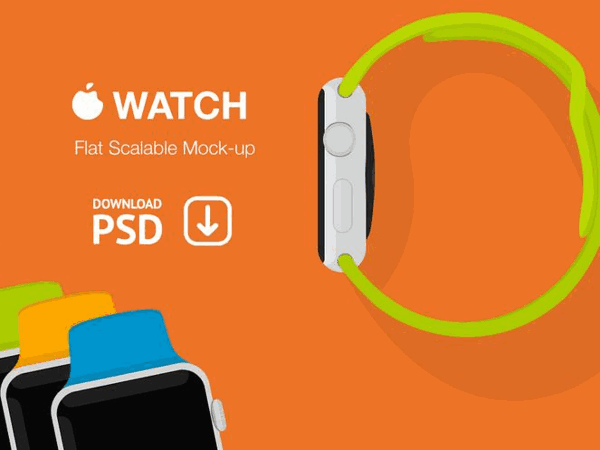
Flat PSD Mockups

This mockup is made using material design guidelines and contains four color variations. Changing the angle and look is pretty easy in this mockup because it is flat.

Flat Apple Watch Mock ups

Apple Watch Mockups for Sketch

Would you feel like betraying Steve Jobs if you were using an Apple Watch mockup on Windows? Well, if you only use Sketch then no problem. Here’s a set of mockups for you.

Apple Watch Mockup for Sketch

iWatch Mockup

This mockup was created when everyone thought this watch was going to be called iWatch. (Why wasn’t it named iWatch?)

iWatch Mockup

Full Front

This has to be one of the simplest designs here. It doesn’t contain any details so it should be an ideal mockup if you need one to use in small size.

Apple Watch Front

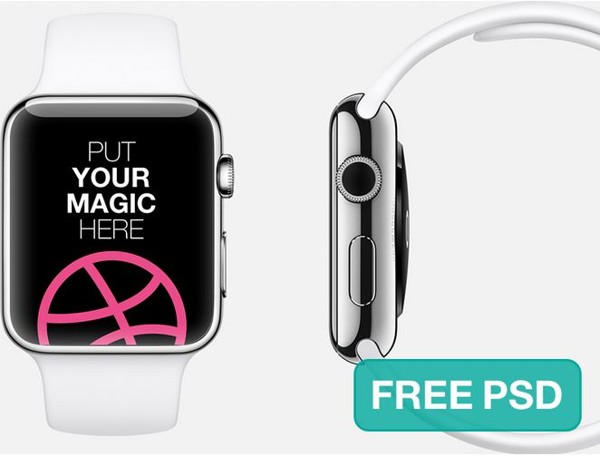
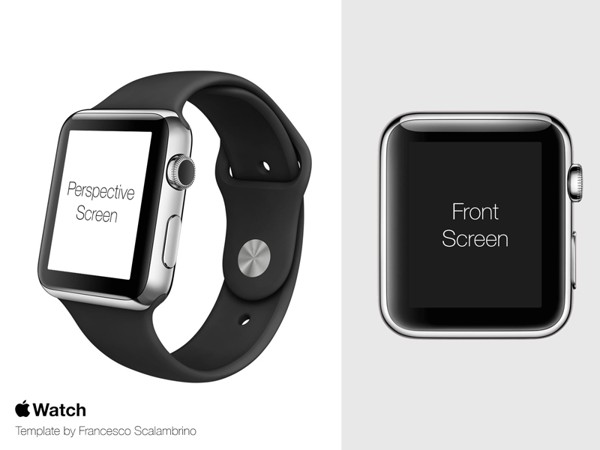
Side and Front

This is a mock up set. All layered PSD files.

Apple Smartwatch Mock-up Set

Classic Apple Watch

This is a classic themed Apple Watch mockup and icon pack.

Classic Apple Watch Mockup

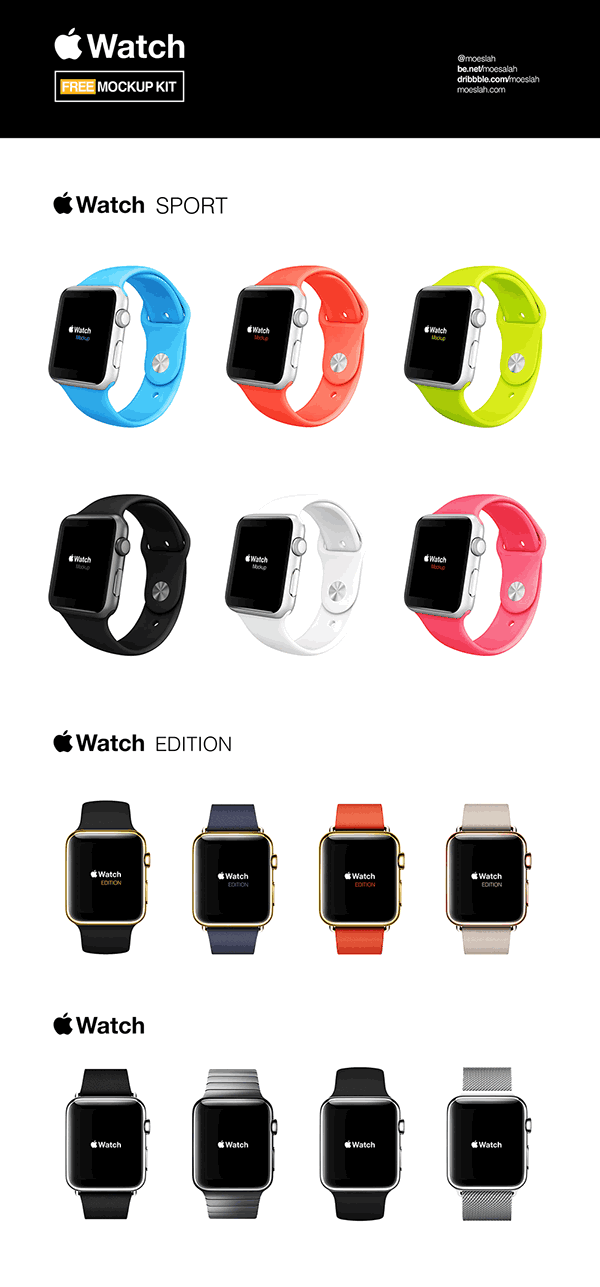
12 Apple Watch Mock-ups

This is a mockup kit for Apple Watch designs.

Apple Watch Mock-ups

Random Smartwatch Mockups

Now, finally we have completed Apple Watch mockups so now it’s time to look at some of the other cool smartwatches available in the market.

Round Smartwatch Mockups

This is one of the coolest mockup packs in the list. It contains 9 high resolution highly detailed absolutely beautiful mockups.

9 Smartwatch Mockups

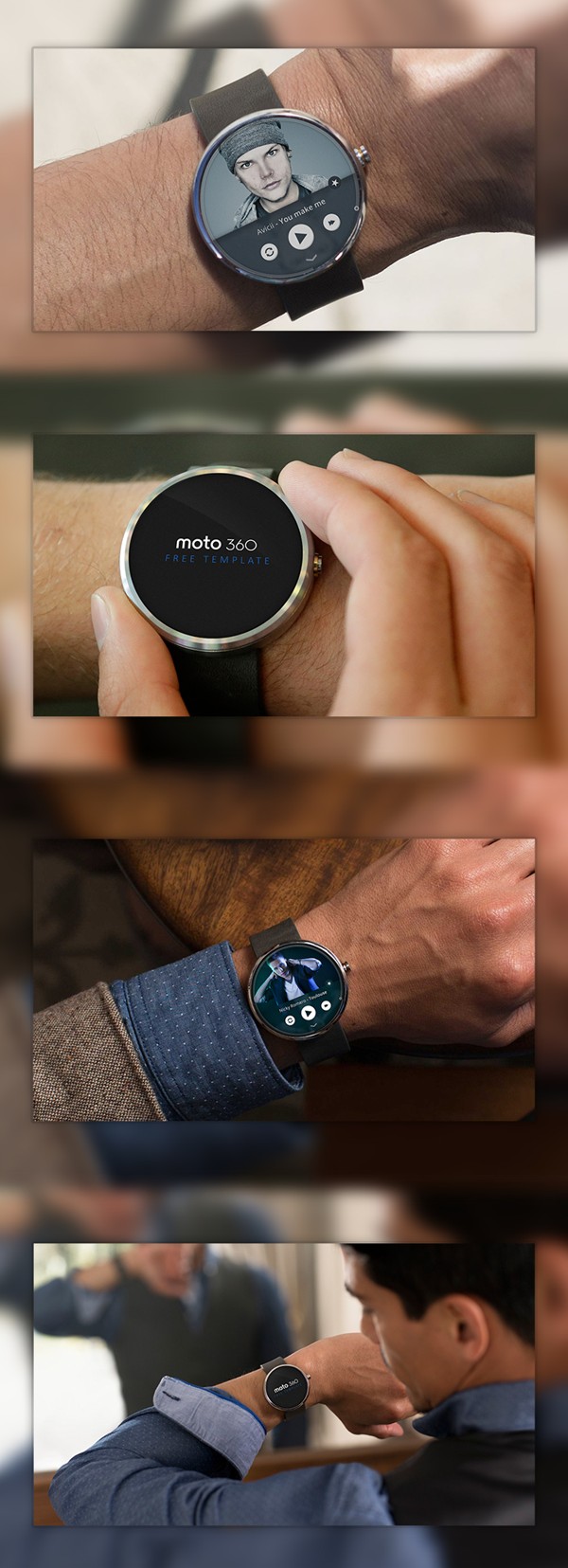
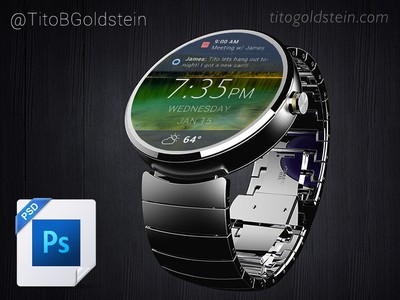
Moto360

This is a damn cool mockup. A mockup, above all else, is suppose to look jaw-dropping awesome, that’s exactly what this mockup is.

Moto360 Photorealistic Mockup

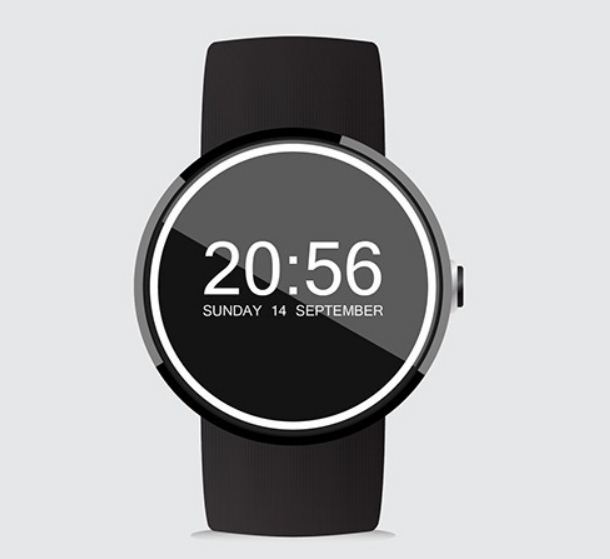
Moto 360 Flat Vector

This is ideal for web and for using low-sized graphics. This one opens in Adobe Illustrator.

Moto360 Vector

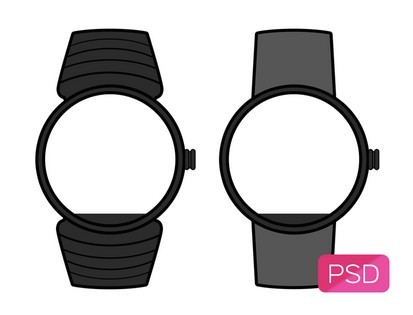
Moto360 Wireframe

This is a resource if you want to create wireframes and prototype designs.

Moto360 Wireframe

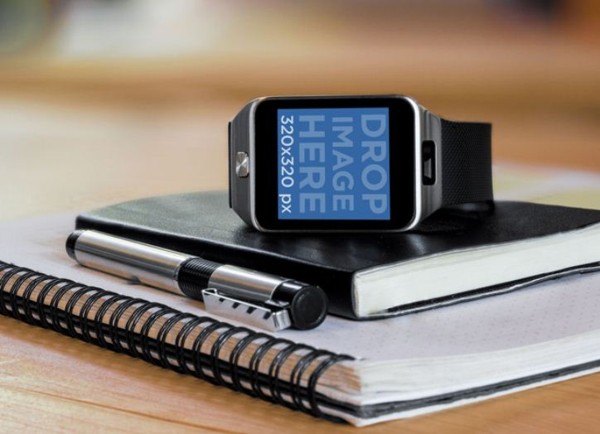
Samsung Galaxy Gear

This is a mockup for one of the biggest competitors of Apple Watch in the market, Samsung Galaxy Gear.

Samsung Galaxy Gear

Android Wear Smartwatch

This is a round smartwatch mockup for an Android Wear running watch.

Android-Wear-Smartwatch

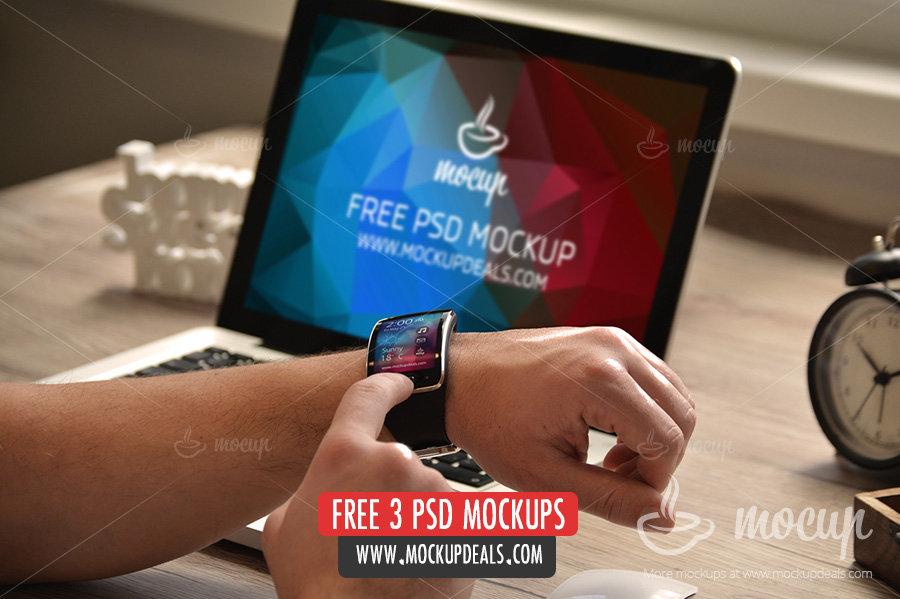
3 PSD Files

I really liked the fact that this mockup contains desktop layout (in the background) and smartwatch layout simultaneously.

Final

How to Communicate with Web Designers

Communication is the most important part of any relationship. If we have to talk about web designing projects, effective communication between the designer and client can make an easy way for a successful project.

Honestly, I personally think that communication is one thing which can make or break a project. If you won’t properly discuss your requirements with the designer, it would be folly to anticipate good results. Also, the issues will crop up and it will result in a difference of opinions.

I have commonly seen designers and clients disagreeing on a lot of things. Clients would want one thing while designers would think that something else will look much better.

So, you need to make sure that you create easy ways for an effective communication with a designer. At the end of the day it’s all about your website, so declaring off your demands to the designer should be your main goal.

Let’s have a few tips to assure your proper communication:

Choose the Right Web Designer

Tips for Choosing  a Website Design Company

In order to avoid any sort of confusion and misunderstanding, it is better to make a wise decision and look for a right designer in the first place. Search for a designer who fits your needs and seem to be reasonable enough.

You can schedule interviews with all potential designers in order to find a thing or two about their personality. You can also check recommendations and /or referrals in the process.

Explaining the Desired Layout

Communication guide

Usually, the client know what he wants – but the problem is in proper explanation to the designer. Should that be the case, you need to work on your communication skills as a client, because it does not matter how good a designer is if you are unable to tell him what you really want.

Your confusion or improper instructions will leave your designer lost. You might have a perfect idea about the kind of content that will be published on your website, but you may not have an idea how to execute the designing idea.

If you think you won’t be able to explain it to the designer, the best you can do at that time is to handover the content to the designer and give him the full authority to represent the content in the best way he can. But if you have a few ideas about the layout, try to convey it to the designer in the best way.

Provide Examples for Inspiration

Taking Inspirations

You can provide examples for inspiration to make yourself even more clear. If you have a certain design in your mind or if you have seen a website which is close to what you want for your website, you can show it to your designer –  so that he gets an idea as to what is really in your mind.

It’s crystal-clear that one website won’t have everything to offer that you want in your website. If you find various websites which resembles your thoughts of the final product, you can save the links and provide them to your designer so that he can work on your suggested designs.

Once you have sent over all the links, you can have a meeting with him in order to explain your points.

Keep Track during the Design Process

Website Designing Procedure

Some clients wait till the end to see the final design of the website which is an extremely bad idea. You should keep track during the design process and it is very important to stay involved with the designer.

Having conversations with your designer on and off can prove to be really fruitful for your own project. There might be a few things that you dislike. In such cases you can get it changed on the spot. If you will don’t like something at the end of the project, making changes becomes almost next to impossible.

Keep an Open Mind

optimization tips

As a client it is very important for you to give your designer some space and keep an open mind about the whole situation. You might be right but give your designer a chance to speak and listen to what he has to say.

Your designer knows designing a little more than you do and his input can do wonders for your website. Remember, the final decision would be yours – but you need to listen to your designer, otherwise why would you hire him at all?

Your Cooperation is the Most Important Thing

Hands on World

You are almost obliged to cooperate with the designer and your input counts big time. This is one of the best ways to ensure smooth procedure of the whole project. Trust your designer and accept that your website is a priority to him as well. If you don’t show any cooperation, the project will only atone.

Paycheck

Writing Down a Check

At the end of the day, everyone works to pay their bills. If you are happy with the designer’s work, make sure you pay them on time. They have responsibilities to deal with too. Do not expect the designer to be the only accountable person.

Conclusion

Your proper communication is not only good for a healthy relationship between you and your designer, but it is also very effective for your project so make sure you keep in mind the above mentioned points while dealing with the designer. If you have any suggestions regarding the topic, please feel free to let us know about them. We would love to hear your feedback.

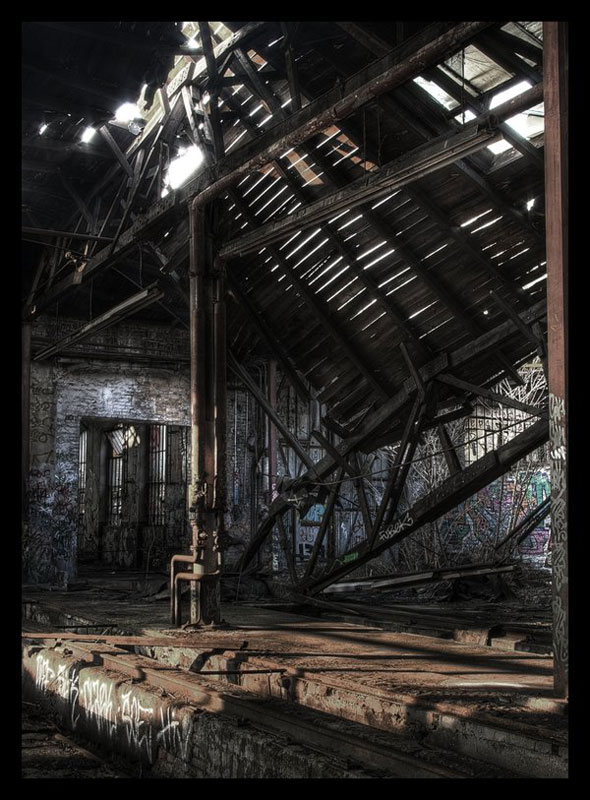
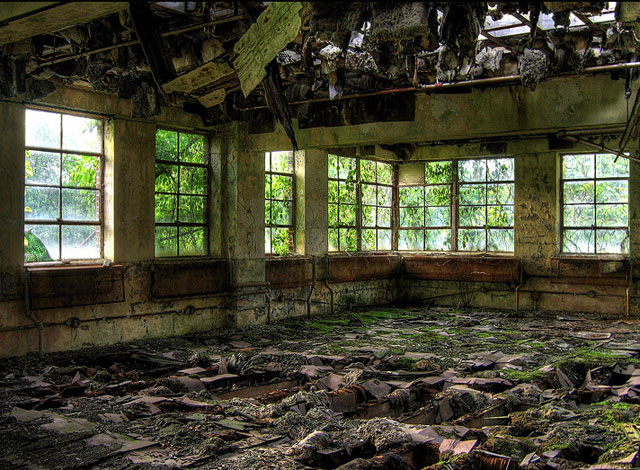
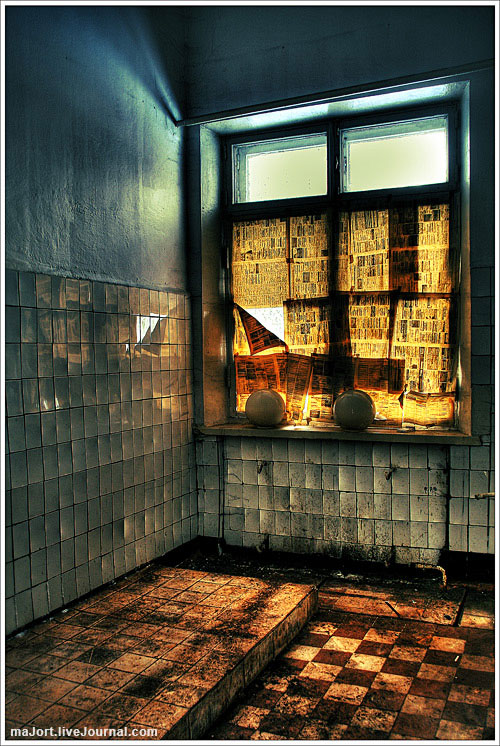
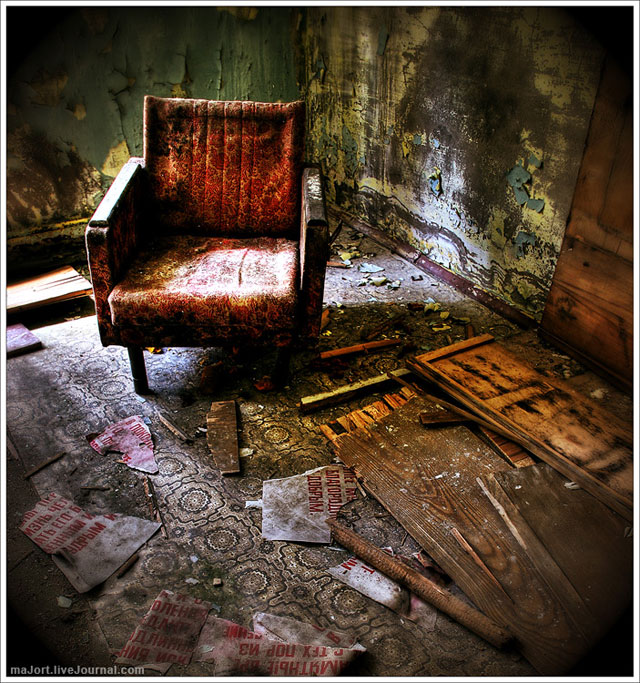
Worth Watching Examples of Urban Decay Photography

Worth Watching Examples of Urban Decay Photography

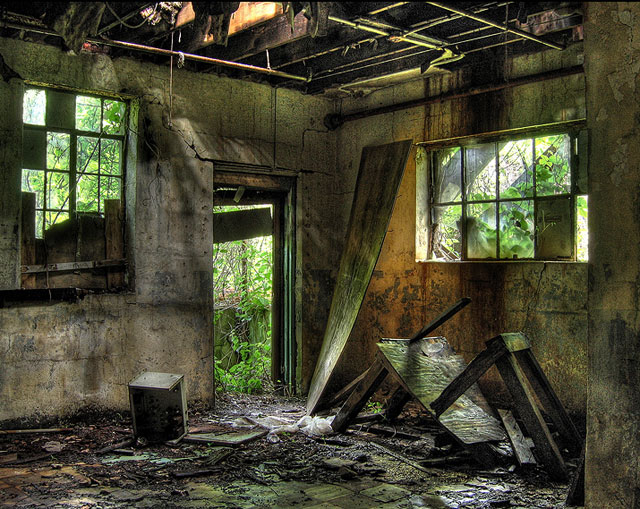
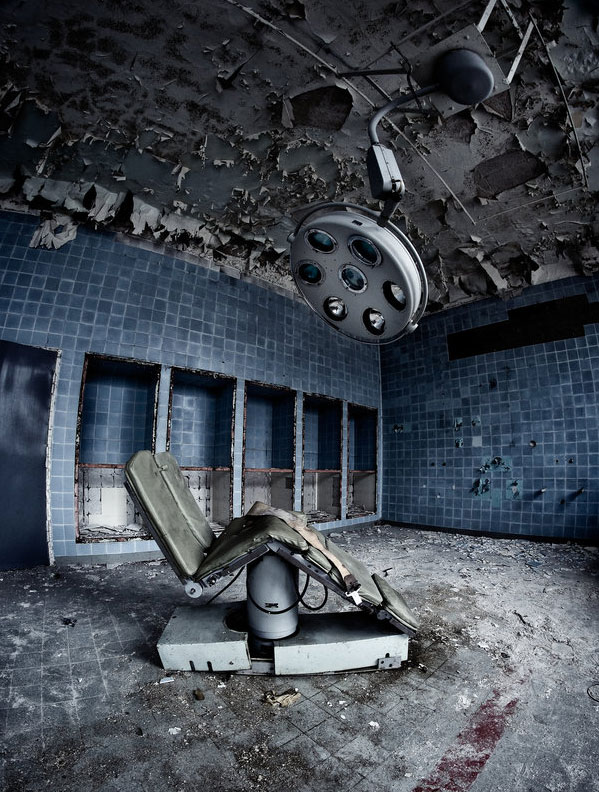
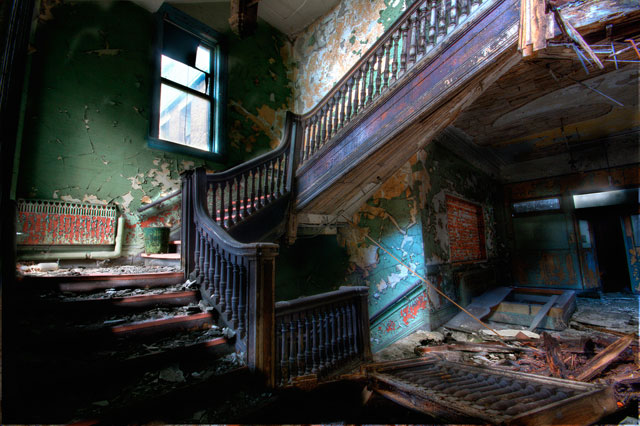
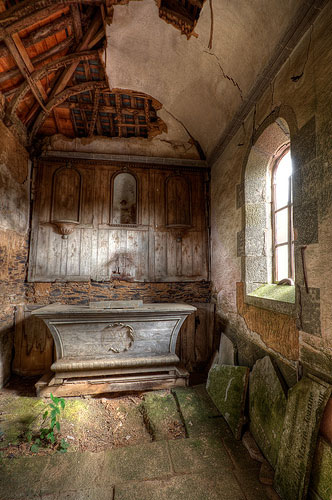
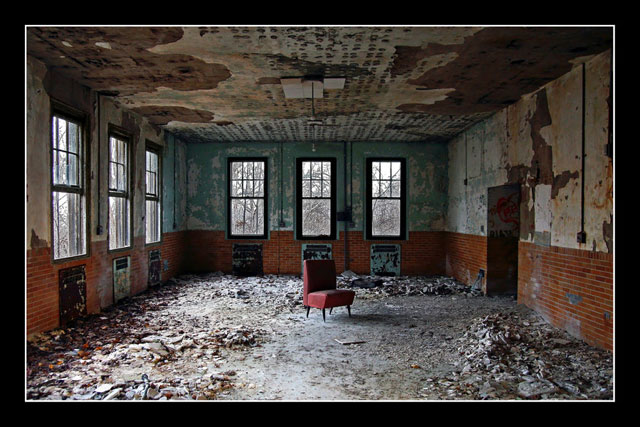
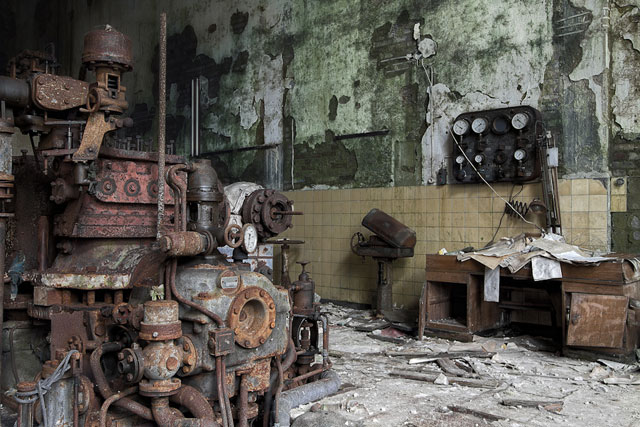
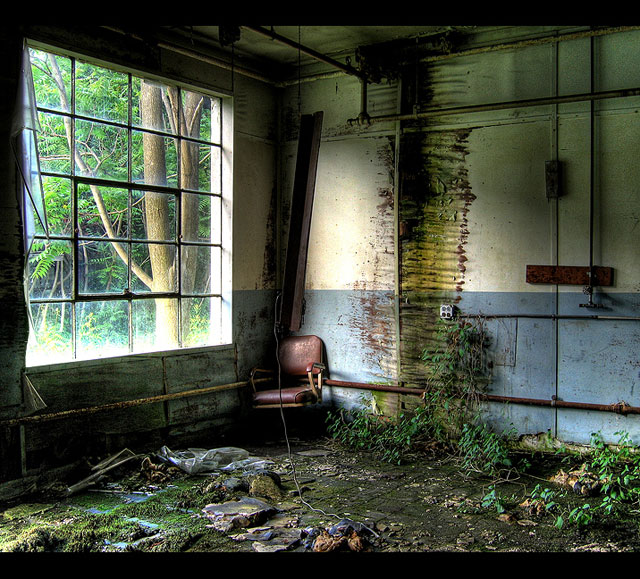
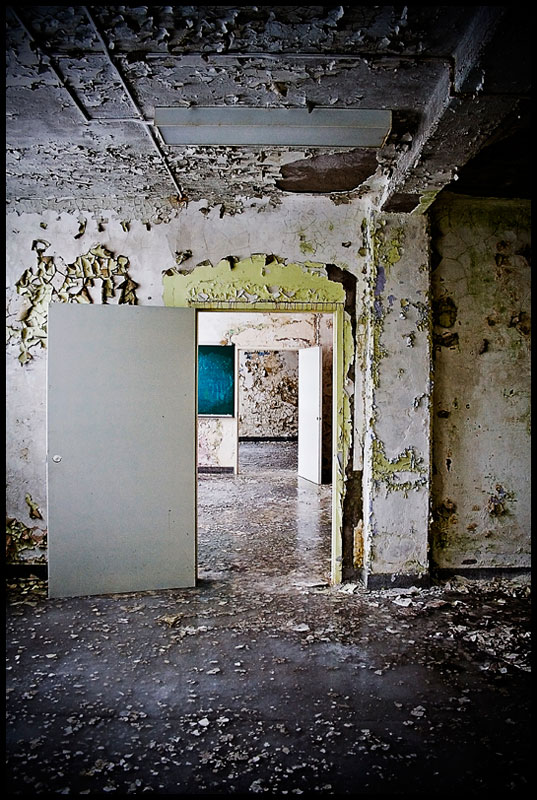
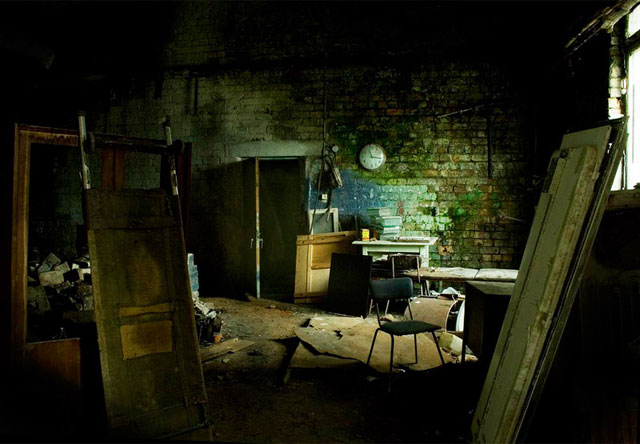
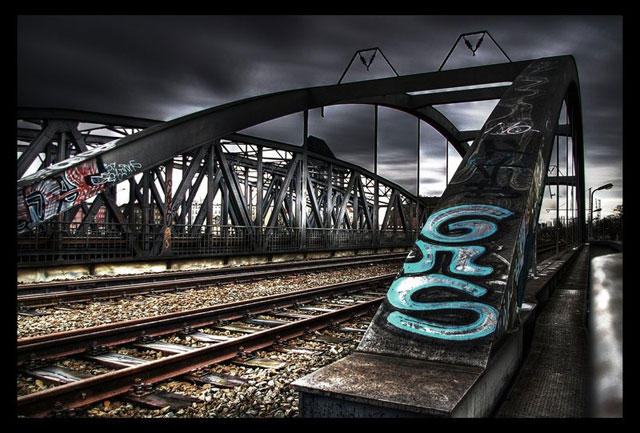
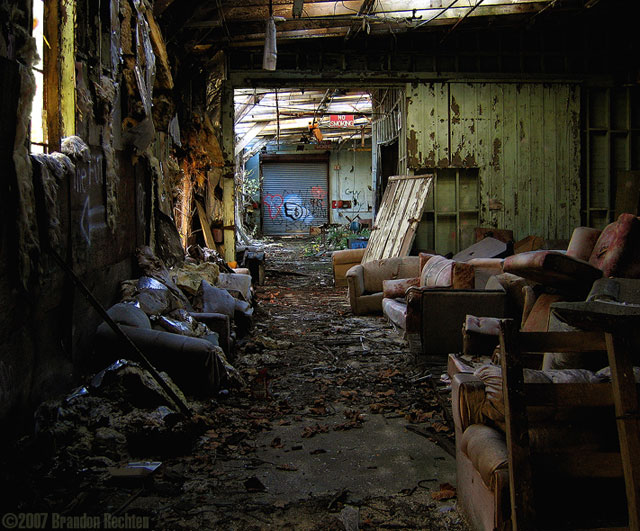
Urban decay photography is the technique of photographing abandoned and rundown buildings, place etc. This type of photography have its own beauty. So i have gathered some amazing examples of Urban Decay photography from different networks like flickr, deviantart etc. Most of these photographs are taken by byonder.

You might also like to view :  Worth Watching Long Exposure Photography or Amazing Examples of High Speed Photography

To go to original Image source click on the image. Hope you enjoy 🙂

Creeping In… by ~byonder

Creeping in Urban Decay Photography

Sit down and Relax by *illpadrino

hospital urban decay photography

House of Horror by Scallop Holden

House of Horror urban decay photography

Abandoned Sacracy by (Erik)

abandoned urban decay photography

Redone by ~daimonpaul

red chair urban decay photography

two stairways. 1 by `Tommy-Noker

stairways urban decay photography

Charcoal State Hospital III by ~baleze

charcoal hospital urban decay photography

time machine by =schnotte

Time Machine Urban Decay Photography

what we used to climb by `Tommy-Noker

stairway urban decay photography


The Lonely Chair II by ~byonder

lonely chair urban decay photography

The End of An Era by =abandoned-echoes

door urban decay photography

AHS_shot2 by ~recreatedplaces

room urban decay photography

dark crossing by =brandybuck

dark urban decay photography

Urban Decay by ~byonder

urban decay photography

fallen roof by =brandybuck

fallen roof urban decay photography

Just Passing Through by ~byonder

Hall urban decay photography

where we used to be.3 by `Tommy-Noker

where we use to be

Charcoal State Hospital I by ~baleze

charcoal state hospital decay photography

what we used to use.2 by `Tommy-Noker

room chair urban decay

Decorticate by ~byonder

stairs urban decay photography